

Mechanical vs. Membrane Keyboard: What Is the Real Difference?
Every computer user interacts with their keyboard thousands of times per day. Programmers write tens of thousands of lines of code, customer support teams respond to hundreds of tickets, competitive gamers execute frame-perfect inputs, and knowledge workers type millions of words per year. Despite this constant physical contact, many individuals treat the keyboard as an afterthought, settling for whatever generic plastic board came bundled with their desktop tower.
When upgrading, buyers inevitably collide with the foundational dispute of modern computing peripherals: Mechanical Keyboards vs. Membrane Keyboards.
In the early days of personal computing, keyboards were heavy, mechanical marvels. Devices like the legendary IBM Model M utilized buckling spring switches that delivered unmistakable tactile snaps and lasted for decades. However, during the computing boom of the 1990s, manufacturers sought ways to slash production expenses. The solution was the silicone rubber dome membrane keyboard. By swapping out hundreds of individual metal springs and gold-plated electrical contacts for a single sheet of molded silicone and printed plastic circuit traces, peripheral manufacturers reduced manufacturing costs by over eighty percent.
Over the past decade, a massive mechanical keyboard renaissance reversed this trend. What began as a niche hobby for competitive esports players and custom hardware enthusiasts has exploded into a mainstream computing category. Today, modern office workers, typists, and engineers actively seek out mechanical hardware for its superior tactile feedback, ergonomic benefits, and exceptional durability.
Meanwhile, membrane technology did not remain stagnant. Innovations in low-profile scissor switches, such as those found on the Logitech MX Keys S and modern ultrabooks, elevated membrane typing from mushy budget plastic to sleek, whisper-quiet executive tools. Furthermore, recent breakthroughs in magnetic Hall Effect switches and optical actuators have redefined what a mechanical keyboard can achieve.
This guide analyzes the mechanical engineering, switch physics, typing ergonomics, acoustic profiles, and total ownership costs of both keyboard categories to help you select the ideal typing tool for your specific computing routine.
How Mechanical and Membrane Switches Actually Work
To understand why these keyboards feel, sound, and perform so differently, you must examine how each architecture registers a keystroke at the physical component level.
1. How a Mechanical Keyboard Switch Works
A mechanical keyboard contains a separate, self-contained physical switch mechanism underneath every single keycap on the board. A full-sized 104-key mechanical keyboard contains 104 distinct electromechanical switches soldered or socketed into a printed circuit board (PCB).
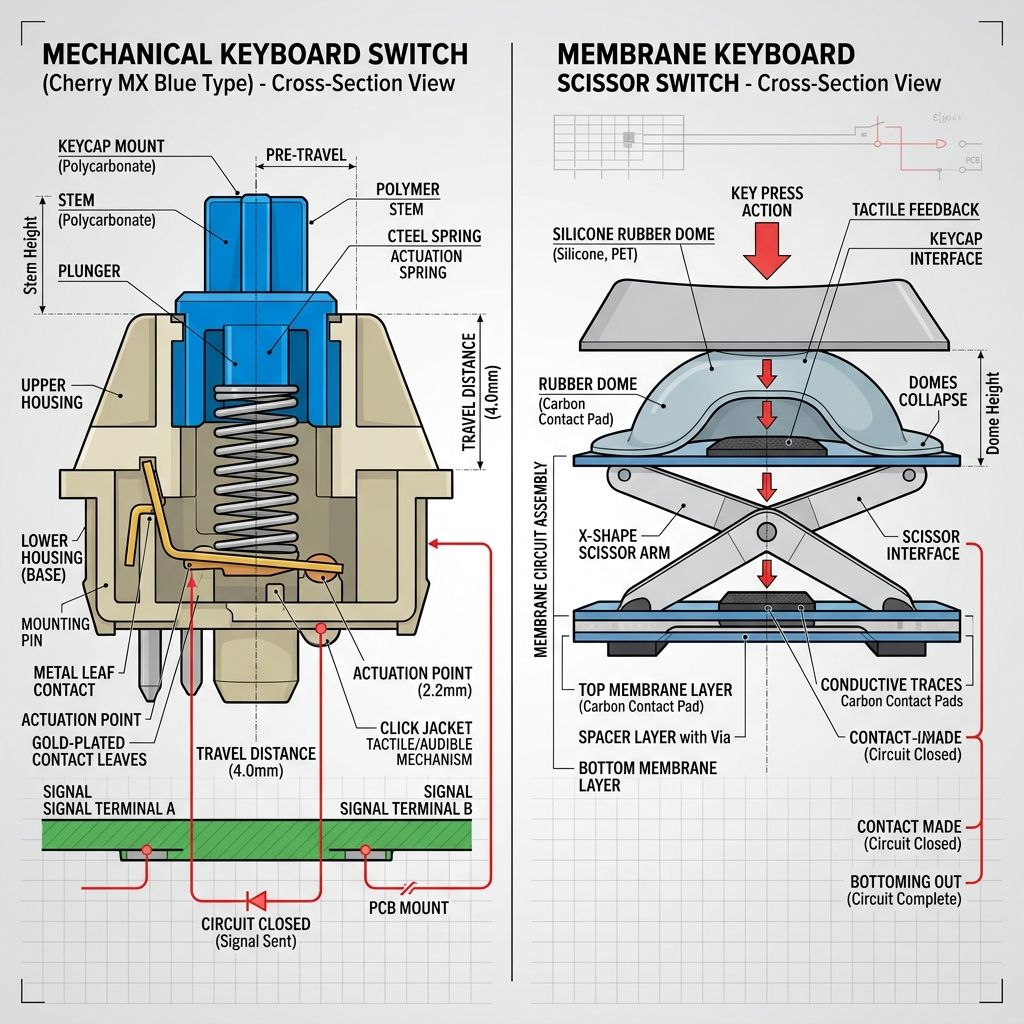
Each traditional mechanical switch consists of five primary components:
- The Upper Housing: A molded plastic frame (typically polycarbonate or nylon) that guides the keycap stem and holds the switch assembly together.
- The Stem: The moving slider that clips into the keycap above. The shape and internal profile of the stem legs dictate whether the switch feels completely smooth (linear), provides a noticeable bump (tactile), or snaps a separate jacket down with a sharp click (clicky).
- The Coil Spring: A tempered steel spring resting beneath the stem. The length, coil count, and wire thickness determine the actuation force (typically between 35 and 65 grams) and pushback resistance.
- The Metal Leaf Contacts: Two gold-plated copper alloy leaves held within the lower housing. As the stem travels downward, its angled legs push the movable leaf into the stationary leaf, completing an electrical circuit.
- The Lower Housing: The base enclosure containing mounting pins that connect to the PCB traces, securely anchoring the switch.
The defining engineering triumph of a mechanical switch is that actuation occurs midway through the key stroke. In a standard switch with 4.0 mm of total downward travel, the metal contacts touch and send an electrical signal at approximately 2.0 mm (or as shallow as 1.2 mm on speed switches). You do not need to push the key all the way down to the bottom of the housing to register a letter.
2. The Three Primary Mechanical Switch Flavors
Because mechanical switches are independent modules, manufacturers tune their physical feedback to match different user preferences:
- Linear Switches (e.g., Red Switches): Deliver a completely smooth, uninterrupted downward travel from the top of the keystroke to the bottom. There is zero tactile bump and zero audible click midway through. Linear switches are favored by competitive gamers who value rapid, frictionless key presses without tactile interference.
- Tactile Switches (e.g., Brown Switches): Feature a gentle mechanical bump positioned right at the actuation point (around 2.0 mm). This bump gives your fingertip physical confirmation that the keystroke has registered without producing a loud acoustic click. Tactile switches are widely regarded as the most versatile option for general office typing, programming, and mixed gaming.
- Clicky Switches (e.g., Blue Switches): Incorporate an intentional click-jacket or click-bar mechanism that produces a crisp, tactile bump accompanied by a sharp, high-pitched auditory snap. While typing enthusiasts enjoy the typewriter-like auditory feedback, clicky switches are notoriously loud and generally unwelcome in shared offices or family living spaces.
3. Beyond Mechanical Leaves: Magnetic Hall Effect and Optical Switches
In modern keyboards, mechanical design has expanded beyond traditional physical metal leaves. Hall Effect magnetic switches (found in keyboards like the SteelSeries Apex Pro and Wooting 60HE) replace physical contact leaves with permanent magnets embedded inside the stem and Hall Effect flux sensors on the PCB.
Because there is no physical metal leaf friction or electrical bouncing, magnetic switches allow users to dynamically adjust the actuation point anywhere from 0.1 mm to 4.0 mm via companion software. Furthermore, they enable Rapid Trigger functionality: the key resets the exact instant your finger begins moving upward by even 0.1 mm, enabling lightning-fast directional changes in competitive first-person shooter games.
4. How a Traditional Membrane Keyboard Works
A conventional membrane keyboard dispenses with individual switch modules entirely. Beneath the keycaps lies a continuous, unified three-layer sandwich of flexible plastic sheets:
- Top Membrane Sheet: A flexible polyester film with conductive silver or carbon ink traces printed on its underside.
- Hole Spacer Layer: A non-conductive middle sheet with circular cutouts positioned directly beneath each keycap.
- Bottom Membrane Sheet: A second flexible film with matching electrical traces printed on its top surface.
- Elastomer Rubber Dome Sheet: A molded silicone mat with flexible, dome-shaped bubbles positioned above each hole.
When you press a key on a membrane keyboard, the plastic keycap stem pushes downward against the top of the rubber dome. The silicone dome resists pressure until it reaches its peak collapse threshold, at which point it suddenly buckles downward. The internal conductive pad beneath the dome forces the top membrane sheet through the spacer hole to make contact with the bottom sheet, completing the circuit.
Because an electrical connection cannot be established until the top and bottom sheets are physically pressed against each other against the backplate, a membrane keyboard requires a full bottom-out on every single keystroke. You cannot register an input midway through travel.
5. The Scissor-Switch Refinement: The High-End Membrane
Budget membrane keyboards feature tall, plastic slider plungers that wobble loosely inside molded top plates, leading to the notoriously spongy, imprecise feel known colloquially as "mush."
To solve this, engineers created the scissor-switch mechanism, widely utilized in modern laptops and premium desktop boards like the Logitech MX Keys S and Apple Magic Keyboard. Scissor switches pair a miniature silicone dome with two interlocking plastic stabilizing arms arranged in an X-shape.
This scissor linkage provides three major functional improvements:
- Wobble Elimination: Even if your finger strikes the very edge or corner of a wide keycap, the scissor arms ensure the entire key descends completely flat and level.
- Ultra-Short Key Travel: Travel is compressed from 4.0 mm down to a shallow 1.5 mm to 1.8 mm, allowing fingers to glide rapidly across keycaps.
- Crisp Snap: High-density silicone domes deliver an immediate, tactile pop at the top of the stroke followed by an instant bottom-out, creating a far more satisfying feel than loose rubber domes.
Is a Mechanical Keyboard Better Than a Membrane Keyboard?
The straightforward answer depends on what you value most at your desk. For typing comfort, physical tactile feedback, gaming precision, and long-term durability, a mechanical keyboard is objectively better. However, for buyers who need a whisper-quiet keyboard for open-plan offices, prefer an ultra-flat low-profile wrist angle, require built-in liquid spill resistance, or have a strict budget under forty dollars, a membrane or scissor-switch keyboard is often the more practical choice.
Here is how the two technologies compare across primary purchasing priorities:
- Where Mechanical Keyboards Win: Distinct tactile feedback, customizable spring weights, 50 to 100 million keystroke durability, modular hot-swappable switch replacement, true N-Key Rollover without ghosting, and sub-millisecond Rapid Trigger response times for competitive gaming.
- Where Membrane Keyboards Win: Whisper-quiet acoustic performance under 35 decibels, natural liquid spill protection via the continuous silicone barrier, ultra-thin flat chassis profiles that reduce wrist extension without a palm rest, lightweight portability, and affordable entry prices.
Mechanical vs. Membrane for Typing and Office Work
The physical differences between mechanical springs and rubber domes directly influence how your fingers, wrists, and forearms feel after typing for seven or eight consecutive hours.
1. Touch Typing Efficiency and Deceleration Shock
The most profound ergonomic distinction between mechanical and membrane keyboards relates to deceleration shock.
On a membrane keyboard, the key must collide with the solid steel or plastic backplate to complete the circuit. Typists who spend all day slamming their fingertips into an unyielding bottom surface transfer that kinetic deceleration force directly into the tendons and joints of their fingers. Over years of high-volume typing, this repetitive bottom-out trauma can contribute to finger soreness and repetitive strain injury (RSI).
On a mechanical keyboard, the switch actuates at approximately 2.0 mm, well before the 4.0 mm bottom-out barrier. Skilled touch typists quickly develop muscle memory that allows them to "float" across the keys. Once your fingers feel the tactile bump or hear the faint click, you can release the key and move to the next letter without bottoming out. The steel coil spring absorbs your finger kinetic energy progressively, acting as a miniature shock absorber.
2. Key Travel Distance: Deep vs. Shallow Strokes
Key travel distance is largely a matter of personal biomechanics:
- Full-Height Mechanicals (3.6 mm to 4.0 mm): Provide a deliberate, immersive typing experience. The generous travel provides ample room for spring cushion, making typos less likely because a key requires a conscious, deep press to register.
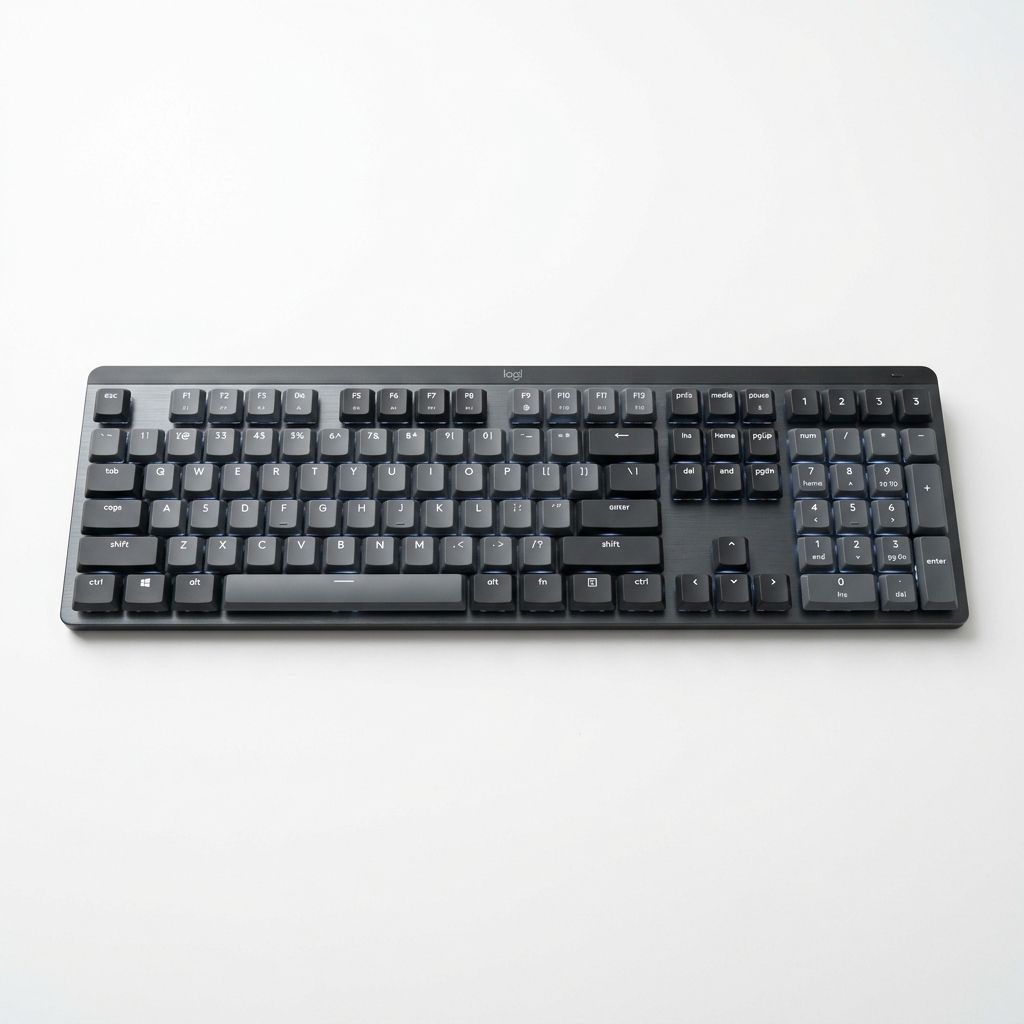
- Low-Profile Mechanicals (2.8 mm to 3.2 mm): Exemplified by the Logitech MX Mechanical, these combine the authentic spring feel and mid-stroke actuation of a mechanical switch with a shorter vertical stroke that reduces finger lift.
- Scissor-Switch Membranes (1.5 mm to 1.8 mm): Provide an ultra-short travel profile similar to a high-end laptop keyboard. Many writers who grew up typing on MacBooks or ThinkPads find that short-travel scissor keys enable higher words-per-minute (WPM) speeds because their fingers do not have to travel up and down deep switch wells.
3. Wrist Angle and Front Lip Ergonomics
Ergonomics is not just about finger switches; it is about wrist posture.
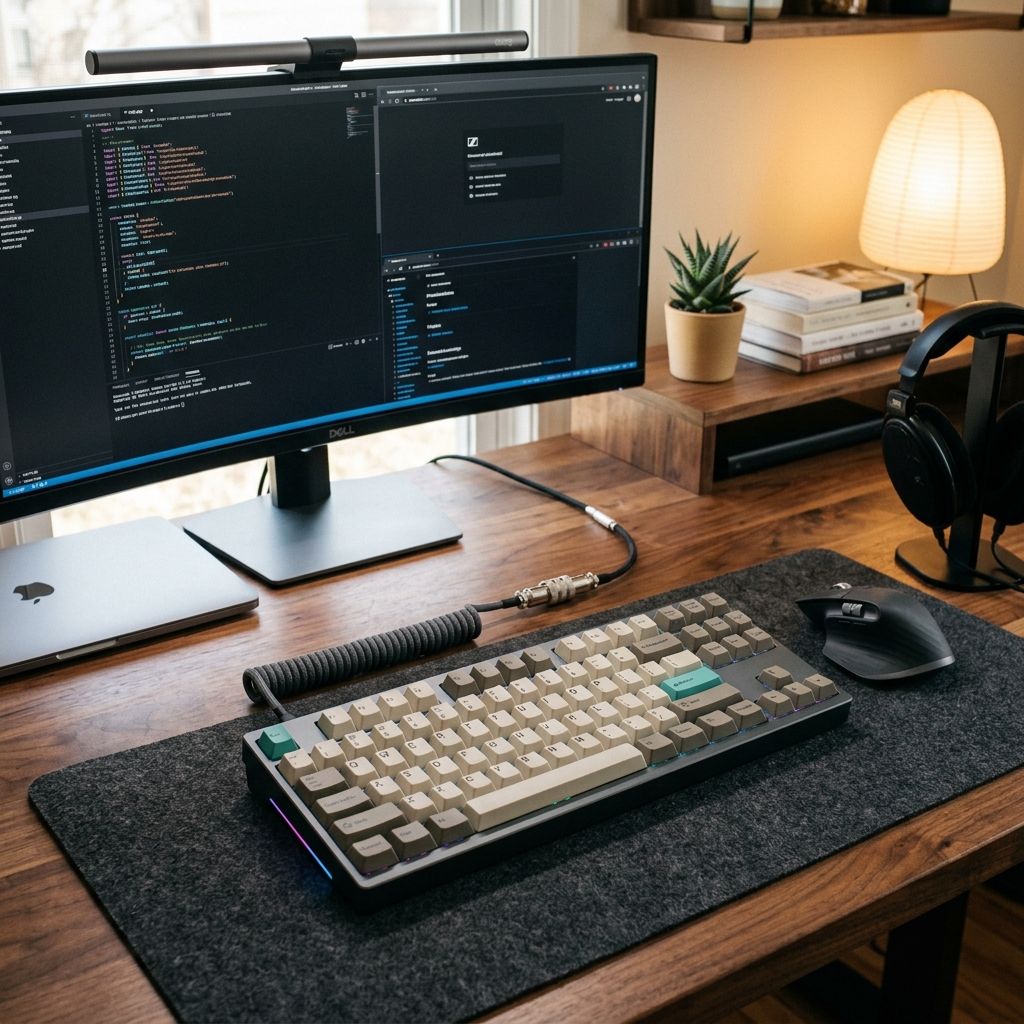
Standard full-height mechanical keyboards are tall. Due to the combined height of the PCB, switch housing, and contoured OEM or Cherry profile keycaps, the front edge of a mechanical keyboard often sits 18 mm to 22 mm above the desk surface. If you rest your palms directly on the desk while typing on a tall mechanical keyboard, your wrists are forced into an upward angle called wrist extension. Sustained wrist extension constricts the carpal tunnel, significantly increasing the risk of wrist fatigue and nerve compression.
To type comfortably on a standard mechanical keyboard, you must either keep your wrists elevated in a floating piano-player posture or use a sloped palm rest to neutralize the angle.
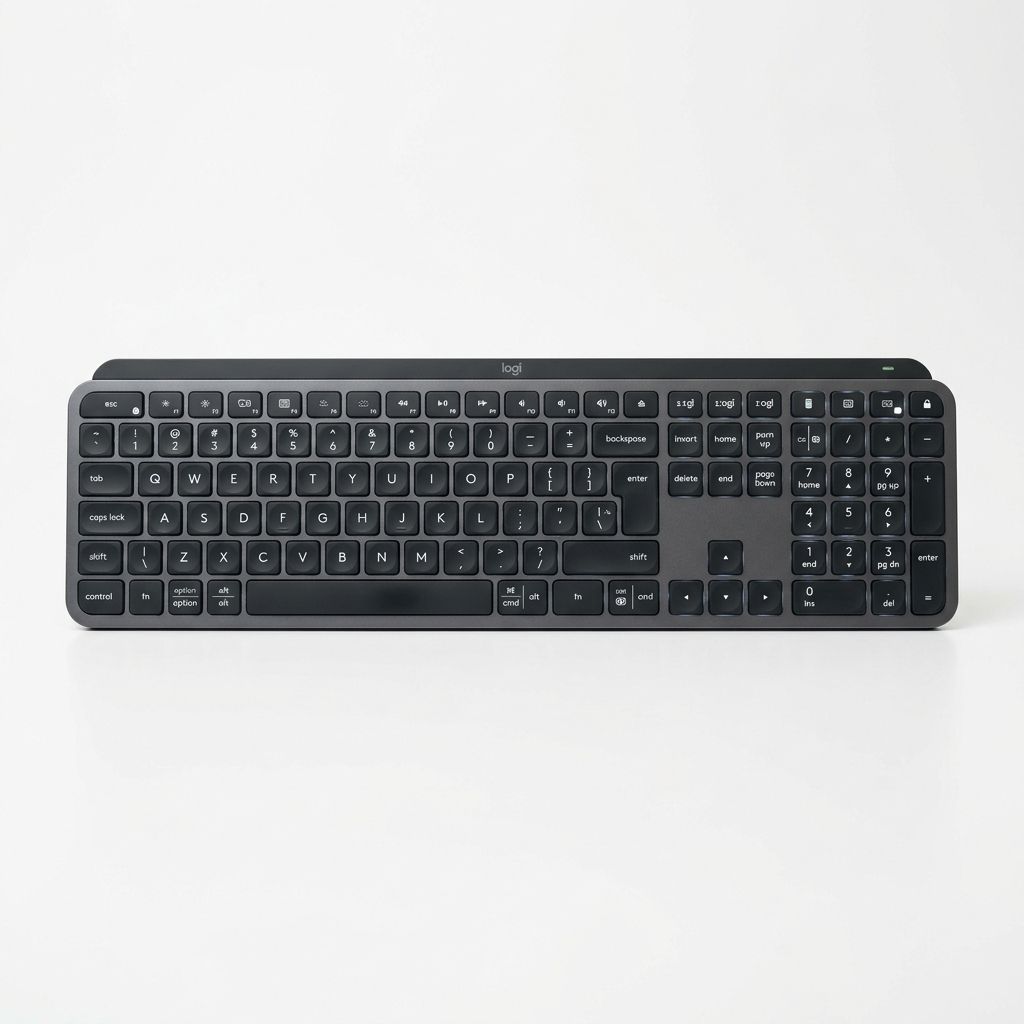
In contrast, low-profile membrane keyboards like the Logitech MX Keys S sit barely 6 mm to 8 mm off the desk surface. This ultra-thin wedge profile allows your wrists to remain completely flat and relaxed without requiring an external wrist rest.
Mechanical vs. Membrane for Gaming: Do Switches Actually Matter?
In competitive gaming, the keyboard is an input engine where milliseconds and multi-key combinations determine match outcomes.
1. Key Rollover (NKRO vs. 6KRO Matrix Blocking)
A critical technical divide between mechanical and budget membrane keyboards is Key Rollover, the number of simultaneous keystrokes a keyboard can accurately process at once.
On cheap membrane keyboards, electrical traces are arranged in a grid matrix where keys share common circuit pathways to save manufacturing costs. When you press three or four keys simultaneously, the keyboard controller can experience ghosting: it cannot determine which circuit closed, resulting in dropped inputs or phantom keystrokes. In fast-paced games where you might simultaneously hold W (walk forward), Shift (sprint), Tab (scoreboard), and press Space (jump) while tapping R (reload), a budget membrane keyboard will frequently drop the reload command entirely.
Mechanical keyboards incorporate an individual isolation diode on every single switch on the PCB. This grants true N-Key Rollover (NKRO) over USB: you could simultaneously mash 40 keys with both palms, and every single keystroke will be registered with 100 percent fidelity.
2. Debounce Delay and Polling Rates
When metal contacts inside a switch slam together, they do not connect seamlessly; they physically vibrate and bounce against each other for several milliseconds before settling. Keyboard firmware utilizes a debounce algorithm that tells the controller to wait a brief window (typically 5 ms to 20 ms) before confirming the keystroke, ensuring a single key press is not misread as a stuttering double-press.
Membrane keyboards also require debounce delays because the silicone dome and flexible circuit sheets create electrical noise as they make contact. Furthermore, most membrane keyboards operate at basic USB polling rates of 125 Hz (reporting once every 8 milliseconds) or 500 Hz (every 2 ms).
Modern esports mechanical keyboards push responsiveness to the theoretical limit:
- High Polling Rates (1,000 Hz to 8,000 Hz): Gaming mechanical keyboards report inputs every 0.125 milliseconds to the computer, virtually eliminating input queuing lag.
- Optical and Magnetic Switches (Zero Debounce): Because light beams and magnetic sensors do not physically bounce, these switches eliminate debounce delay entirely, firing the input within 0.1 milliseconds of reaching the threshold.
- Rapid Trigger Technology: Traditional switches require the key stem to travel back upward past the reset point (often 1.5 mm to 2.0 mm) before you can press it again. With Hall Effect Rapid Trigger, the key disengages the instant it moves up by 0.1 mm and can re-fire immediately. In tactical shooters like Valorant or Counter-Strike 2, this allows players to stop their character dead in their tracks to fire pinpoint-accurate shots a fraction of a second faster than opponents on standard switches.
Membrane vs. Mechanical Keyboard Sound: How Loud Are They?
How loud a keyboard sounds is often the deciding factor in whether you can use it in a shared environment.
1. The Mechanical Sound Spectrum
Mechanical keyboards have a reputation for being obnoxiously loud. However, the volume and acoustic profile of a mechanical keyboard depend entirely on switch selection and chassis construction:
- Clicky Switches (60 to 70 dB): Loud and clattery. The metallic click-jacket produces a sharp snap that easily cuts through office partitions, irritates family members in adjacent rooms, and triggers microphone voice-activation during Zoom calls.
- Standard Linear and Tactile Switches (45 to 55 dB): Moderate volume. While the switch itself does not make an intentional click, the plastic keycap stem striking the lower housing when bottomed out creates a clean plastic clack.
- Silent Linear Switches (35 to 42 dB): Extremely quiet. Switches such as the Cherry MX Silent Red or Outemu Silent Peach feature integrated elastomer silicone dampeners on the stem rails that cushion both the downward stroke and the upward rebound, making them nearly as quiet as a membrane keyboard.
- Enthusiast Acoustic Tuning: High-end custom mechanical keyboards use gasket-mounted switch plates, poron internal case foams, and factory-lubricated switch stems to eliminate high-pitched rattles, transforming the typing sound into a satisfying, deep, low-frequency "thock."
2. The Natural Stealth of Membrane Keyboards
Membrane keyboards are inherently silent by design. Because a flexible silicone rubber dome cushions the impact on both the descent and the rebound, there are no metal leaves snapping together and no hard plastic-on-plastic collisions.
Scissor-switch models like the Logitech MX Keys S register between 28 and 35 dB, producing a muted, dignified whisper. If you work in a quiet open-plan office, take late-night client calls while typing notes, or share a bedroom workspace with a sleeping partner, a premium scissor-switch membrane keyboard is the safest, most considerate option.
Are Mechanical Keyboards Worth It? Durability and Long-Term Value
A keyboard is not an ephemeral purchase; it should endure millions of keystrokes. Here, the two technologies diverge dramatically.
1. Switch Degradation: Springs vs. Silicone Elasticity
The Achilles heel of membrane keyboards is the chemical reality of silicone elastomer:
- Silicone Fatigue (5 to 10 Million Keystrokes): Every time a rubber dome collapses and pops back up, microscopic fatigue fractures form in the silicone polymer chains. Over two to three years of daily use, the most frequently typed keys (like the spacebar, E, T, and Enter) lose their snap. They feel mushy, require uneven pressure, or become sticky and reluctant to return.
- Oxidation and Hardening: Over time, exposure to ambient humidity, UV light, and heat causes silicone to stiffen and oxidize. An older membrane keyboard often feels significantly harder and more tiring to type on than it did on day one.
- Tempered Steel Durability (50 to 100 Million Keystrokes): In contrast, the tempered steel coil springs inside mechanical switches maintain their rated spring curve for over a decade. A mechanical switch feels virtually identical on keystroke 50 million as it did on keystroke one.
2. Serviceability: Single-Switch Hot-Swap vs. Throwaway Architecture
What happens when a single key stops working?
On a membrane keyboard, if an electrical trace on the plastic sheet cracks, corrodes, or fails beneath the letter S, the keyboard is dead. You cannot replace an individual dome or repair a microscopic printed trace. The entire keyboard must be discarded into electronic waste.
On a modern hot-swappable mechanical keyboard, if a switch fails after years of heavy use, you simply take a small metal switch-puller tool, pull the dead switch straight out of its socket in three seconds, and snap in a brand-new $0.35 replacement switch. You do not even have to unplug the keyboard from your computer.
3. Keycap Customization and Cleanability
Mechanical keyboards adhere to the universal Cherry MX cross-stem standard (+). This allows users to easily pull off their keycaps to clean accumulated dust and hair from the top plate or swap their keycaps for thick, durable double-shot PBT sets that never develop ugly, shiny finger wear.
Membrane keyboards feature proprietary plastic clip assemblies that are delicate and prone to snapping if removed aggressively. Finding replacement keycaps for a broken membrane key is virtually impossible.
4. The One Area Where Membrane Wins: Spill Resistance
Membrane keyboards hold one decisive practical advantage over mechanical hardware: liquid spill resistance.
Because the molded silicone mat forms a continuous, uninterrupted rubber sheet across the entire board, it acts as a waterproof umbrella. If you spill a cup of water, tea, or soda across a membrane keyboard, the liquid usually pools harmlessly on the rubber sheet and drains out through weep holes without reaching the delicate circuit traces beneath.
On a mechanical keyboard, liquid instantly drains down into the open switch housings, washing away factory lubricants, corroding delicate metal leaves, and short-circuiting the exposed solder points on the PCB. Unless a mechanical keyboard specifically carries an IP57 or IP68 waterproof rating (rare outside specialized industrial boards), a spilled mug of coffee will permanently destroy it.
Five-Year Total Cost of Ownership Projection
To understand the true financial investment of choosing between cheap disposable peripherals and modular hardware, consider the 5-year ownership projection below:
| Expense Category | Budget Membrane Keyboard | Premium Scissor-Membrane (MX Keys S) | Modular Mechanical Keyboard (Keychron / MX Mech) |
|---|---|---|---|
| Initial Purchase Price | $20.00 to $30.00 | $109.99 | $90.00 to $169.99 |
| Expected Working Lifespan | 1.5 to 2.5 Years (mushy dome fatigue) | 3 to 4 Years (scissor wear & battery) | 7 to 10+ Years (modular hot-swap parts) |
| Repair Cost per Broken Key | Non-repairable (Replace unit) | Non-repairable (Replace unit) | $0.35 (Single switch swap) |
| Replacement Units Needed (5 Years) | 2 to 3 Units | 1 to 2 Units | 0 Units (Original unit endures) |
| Five-Year Total Investment | $60.00 to $90.00 | $109.99 to $219.98 | $90.00 to $175.00 |
While a $25 membrane keyboard appears cheaper on day one, buying two or three replacement boards over a five-year window ends up costing nearly as much as buying an enduring, high-quality mechanical keyboard from the start.
Top Keyboards to Buy: The Best Mechanical and Membrane Models
Whether you prefer the crisp tactile snap of mechanical switches or the whisper-quiet portability of modern scissor membranes, these seven models represent the finest hardware choices on the market.
1. Logitech MX Mechanical Wireless
The Logitech MX Mechanical bridges the gap between traditional mechanical typing and modern office productivity. It features low-profile mechanical switches (available in Tactile Quiet, Linear, or Clicky) paired with dual-tone matte keycaps and an aluminum top case.
- Key Strengths: Exceptional wireless multi-device switching across three computers, smart ambient backlighting that illuminates as your hands approach, and low-profile travel that reduces wrist fatigue without requiring a palm rest.
- Trade-Offs: Low-profile keycaps use proprietary stem spacing, meaning third-party custom keycap sets are limited.
View Logitech MX Mechanical on Amazon →
2. Logitech MX Keys S Wireless
The undisputed benchmark in premium scissor-switch membrane design. The Logitech MX Keys S is engineered with spherically dished keycaps that cradle your fingertips, resting in a solid single-metal-plate chassis that completely eliminates deck flexing.
- Key Strengths: Whisper-quiet operation that blends seamlessly into Zoom calls and open workspaces, rapid finger-gliding speed, and Smart Actions macro automation via the Logi Options+ software.
- Trade-Offs: Non-mechanical switches cannot be serviced individually, and gamers will find the 60 Hz polling rate lacking for esports.
View Logitech MX Keys S on Amazon →
3. Keychron Q1 Pro Custom Mechanical Keyboard
For typing purists who demand industrial-grade craftsmanship, the Keychron Q1 Pro offers a full CNC-machined 6063 aluminum chassis, double-gasket acoustic mounting, and wireless Bluetooth connectivity.
- Key Strengths: Full hot-swappable switch sockets (compatible with virtually all 3-pin and 5-pin MX switches), open-source QMK/VIA key remapping, thick double-shot PBT keycaps, and a deep, acoustic typing profile that sounds like heavy raindrops.
- Trade-Offs: Heavy weight (over 1.7 kg / 3.8 lbs) makes it strictly a permanent desk anchor, and the tall front lip requires a palm rest.
View Keychron Q1 Pro on Amazon →
4. SteelSeries Apex Pro Gaming Keyboard
The gold standard for esports athletes and competitive PC gamers. The SteelSeries Apex Pro utilizes magnetic OmniPoint 2.0 Hall Effect switches that replace physical contact leaves with electromagnetic sensors.
- Key Strengths: Fully adjustable actuation points per individual key (from 0.1 mm hair-trigger up to 4.0 mm deep press), Rapid Trigger reset capability for instant counter-strafing, and an onboard OLED smart display for profile switching.
- Trade-Offs: Higher price point and dedicated software requirements to unlock its magnetic capabilities.
View SteelSeries Apex Pro on Amazon →
5. Corsair K55 Core RGB Gaming Membrane Keyboard
For casual gamers or students on a tight budget who still want dedicated gaming features without spending over a hundred dollars, the Corsair K55 Core RGB is an exceptional value pick.
- Key Strengths: Responsive rubber dome keys with quiet acoustics, 300 ml spill-resistant liquid defense, dedicated media playback keys, and vibrant 10-zone RGB lighting controlled via Corsair iCUE.
- Trade-Offs: Membrane rollover limitations (12-key selective rollover) and non-swappable switches.
View Corsair K55 Core RGB on Amazon →
6. Razer Ornata V3 Mecha-Membrane Keyboard
The Razer Ornata V3 represents the premier hybrid "mecha-membrane" design. It places an audible metal click-spring mechanism directly on top of a cushioned rubber membrane dome, attempting to deliver the best of both worlds.
- Key Strengths: Low-profile ergonomic keycaps, crisp audible click feedback on actuation, comfortable magnetic soft-touch wrist rest included in the box, and budget-friendly pricing.
- Trade-Offs: Still relies on an internal rubber membrane sheet that requires bottoming out, and the click can sound metallic rather than clean.
View Razer Ornata V3 on Amazon →
7. Apple Magic Keyboard with Touch ID
The quintessential minimalist scissor-switch board for macOS users. The Apple Magic Keyboard features an ultra-thin unibody aluminum profile with integrated biometric Touch ID.
- Key Strengths: Instant fingerprint authentication for Apple Pay, password managers, and Mac logins; featherweight portability; and a virtually flat typing angle that keeps wrists completely neutral.
- Trade-Offs: Extremely shallow 1.0 mm travel can feel jarring to heavy typists, and Windows compatibility is severely restricted.
View Apple Magic Keyboard on Amazon →
Which Keyboard Should You Buy? Quick Decision Guide
Choose a Mechanical Keyboard if:
- You type thousands of words per day: You want tactile feedback that lets you register keystrokes midway through travel without slamming your fingers into an unyielding plastic baseplate, reducing long-term joint strain.
- You play competitive fast-paced PC games: You require true N-Key Rollover, zero-debounce Hall Effect magnetic switches, Rapid Trigger resets, and high polling rates that will never drop a complex input combination.
- You want an investment that lasts a decade: You value hot-swappable switches where a single broken key can be fixed for thirty-five cents, keeping your peripheral completely out of landfills.
- You appreciate personalized hardware aesthetics: You want the freedom to customize your keycaps, switch weights, lubricants, and sound profiles to match your desk setup.
Choose a Membrane or Scissor-Switch Keyboard if:
- You work in a quiet open-plan office or shared home: You need a whisper-quiet typing sound (under 35 dB) that will never annoy colleagues, disturb sleeping roommates, or distract clients on conference calls.
- You prefer an ultra-thin, flat typing posture: You prefer resting your hands directly on the desk with zero wrist extension and refuse to use a raised, bulky wrist rest.
- You drink coffee or eat meals at your computer desk: You value the peace of mind that a continuous silicone sheet barrier provides against accidental liquid spills and breadcrumbs.
- You travel frequently or have a modest budget: You need a lightweight, ultra-portable keyboard that slips into a laptop sleeve, or you want a reliable plug-and-play typing solution under forty dollars.
The Bottom Line
The debate between mechanical and membrane keyboards is not about one technology being universally superior in every scenario; it is about matching switch mechanics to your daily computing reality.
For high-volume writers, software developers, hardware enthusiasts, and competitive gamers, the mechanical keyboard remains the definitive gold standard. Its midway actuation relieves deceleration stress on finger joints, its 50 to 100 million keystroke endurance outlasts multiple computer upgrades, and modern low-profile models like the Logitech MX Mechanical prove you can enjoy mechanical tactile feedback without cumbersome desktop bulk.
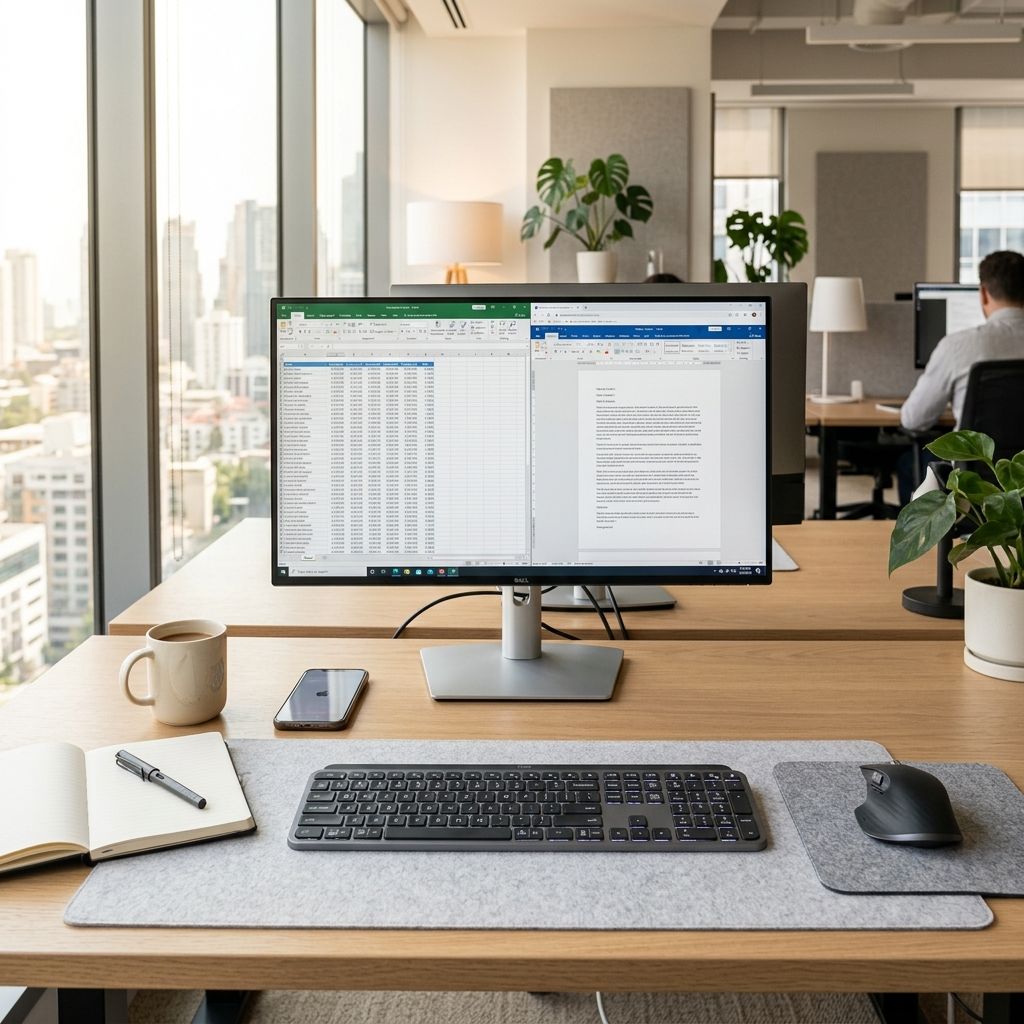
However, the modern scissor-switch membrane keyboard, epitomized by the Logitech MX Keys S, has earned its rightful place on executive desks. For professionals who operate in quiet shared offices, require low-profile wrist ergonomics, and want a smooth, whisper-quiet typing tool that connects instantly without maintenance overhead, high-end scissor membranes deliver an exceptionally refined experience.